
Introduction
To access TT Payroll you must first login to SafeHost using the shortcut emailed to you, then login to TT Payroll to gain access to the payroll program.
SafeHost Login
Click the shortcut supplied, it should be called 'TT Payroll SafeHost' and look like this:

Enter your credentials (the username and password as supplied by TT Software) on the following login screen:
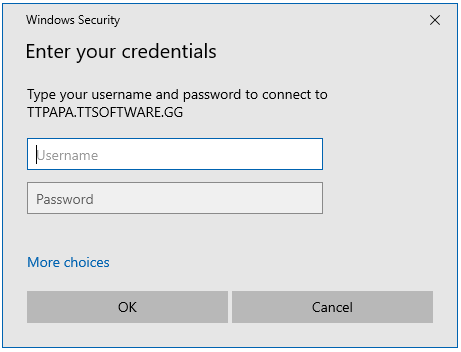
If you use Apple computers, then please ensure Microsoft Remote Desktop has been installed and use the Configure & Import option to pull in the 'TT Payroll SafeHost' shortcut . Then you can click the shortcut from within Microsoft Remote Desktop.
After clicking OK to login, SafeHost will try to start the TT Payroll app, and display the following screen:
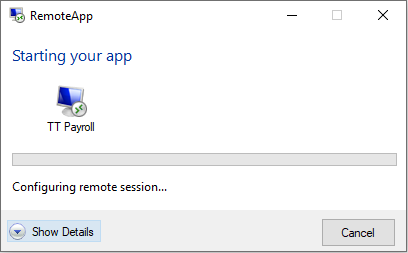
If nothing seems to happen click Show Details at the bottom of the window.
Two-factor authentication
If we have enabled Two-factor authentication then SafeHost will require a second response from you in order to confirm your login attempt.
Option 1
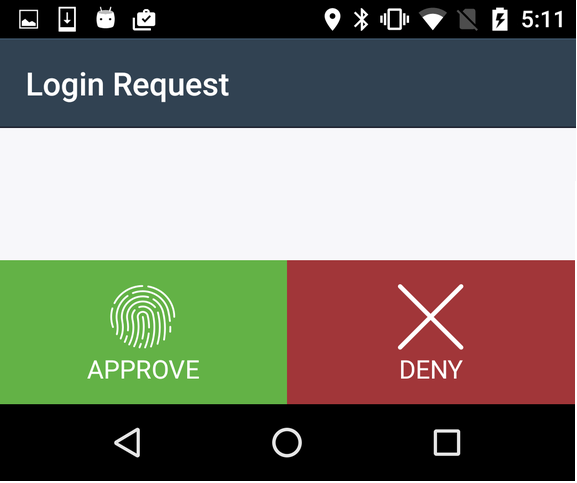
Install the DUO app on your mobile device. Before the TT Payroll app starts the DUO app will popup and ask you to authorise the login attempt, like this:
Options 2
Purchase a DUO hard token keyring from us. The hard token looks like this:

Before the TT Payroll app starts press the green button on your DUO token then enter the code displayed to confirm your login attempt.
TT Payroll Login
After successful login to SafeHost, a TT Payroll login prompt will appear. Enter your TT Payroll username and password to gain access to the parts of